How to Design on Canva for Perfect Prints Every Time | Punjab Print Plus Design Guide
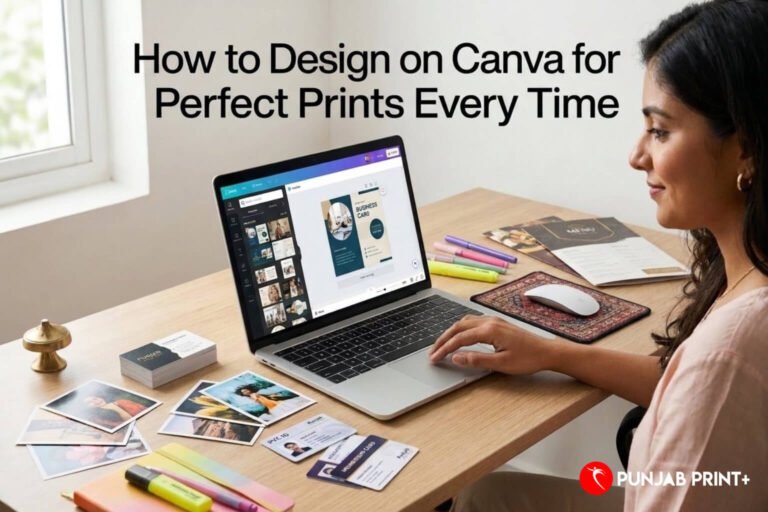
Creating a design in Canva is simple, but creating a design that looks just as good after printing requires a little more attention. A design can look sharp and colorful on your mobile or computer screen but appear blurry, cropped, dull or difficult to read when printed.
Whether you are designing a business card, PVC card, photo print, poster, flyer, invitation, mug, T-shirt, framed photo or another personalized product, preparing the artwork correctly can make a big difference to the final result.
At Punjab Print Plus, we want your printed products to look professional and match your expectations. This guide explains the important Canva settings and design practices you can follow before sending your artwork for printing, whether you are ordering from India or from another country.
Start With the Correct Final Size
One of the first and most important steps is choosing the correct document size before you begin designing.
Instead of creating a random-size Canva design and adjusting it later, first find out the required finished or trim size of your product.
For example:
- Business card: 3.5 x 2 inches
- A4 print: 8.27 x 11.69 inches
- A5 print: 5.83 x 8.27 inches
- Custom photo products: use the exact size required for the product
For a professional print, the design dimensions should match the actual finished product size as closely as possible.
If a product requires bleed, your artwork may need to be slightly larger than the finished size. Always follow the specific print specifications provided for your product.
Canva Tip
When creating a new Canva design, choose Custom Size and enter the required dimensions in inches, millimeters or centimeters.
Do not guess the size based on how the product looks on your screen.
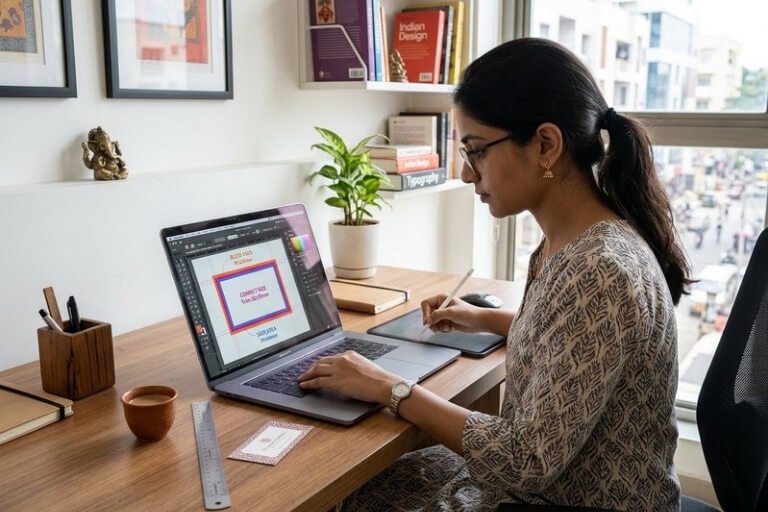
Use High Resolution Images
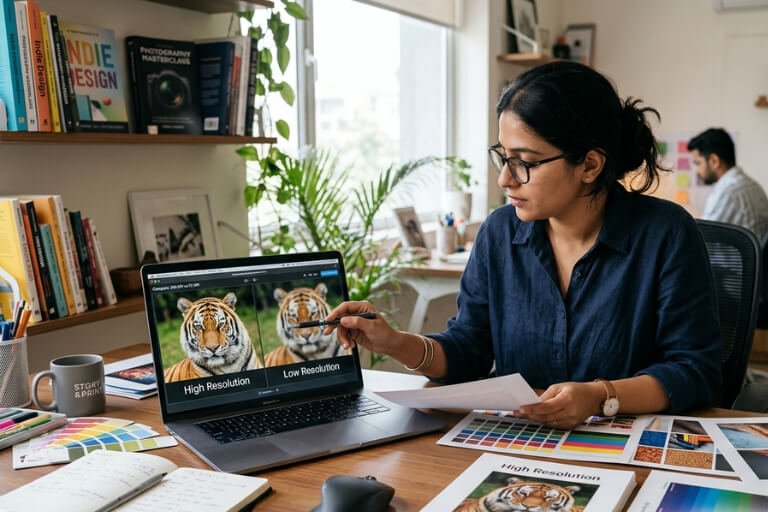
A beautiful photograph can still produce a poor print if the original image is too small.
For professional printing, use high-resolution photographs and graphics whenever possible. This is especially important for large prints, photo products, posters and personalized gifts.
Avoid using:
- Screenshots
- Images downloaded from very small web previews
- Blurry WhatsApp images
- Small social media thumbnails
- Images that already look pixelated
When you enlarge a low-quality image, Canva can make it physically larger, but it cannot magically recreate all the missing image detail.
A Simple Canva Quality Check
Before finalizing your design, zoom into important photographs and graphics.
If you can already see pixelation or softness, the printed result may be even more noticeable.
For products such as photo prints and framed photos, starting with a good-quality original photograph is especially important.
Understand RGB and CMYK for Printing
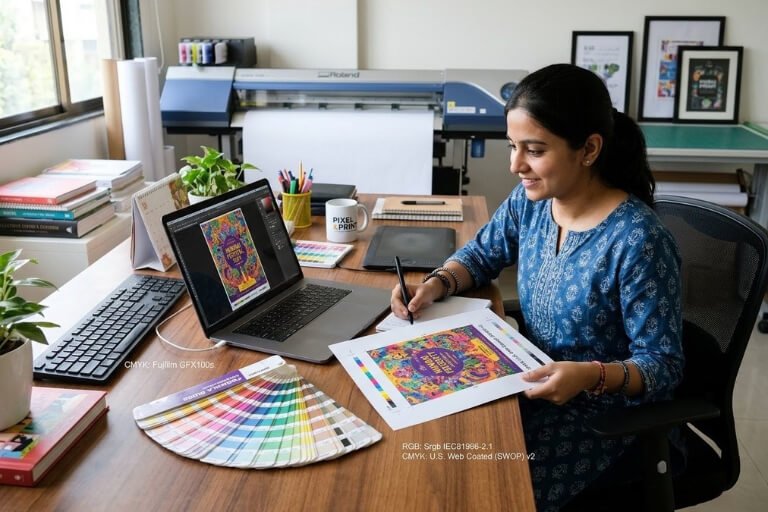
Your screen and a printer do not produce colors in exactly the same way.
Digital screens primarily display RGB, which stands for Red, Green and Blue. Professional printing commonly uses CMYK, which stands for Cyan, Magenta, Yellow and Black.
Because of this difference, some colors may appear slightly different after printing.
For example, extremely bright neon colors or certain vivid screen colors may not reproduce exactly on physical media.
What You Should Do
When designing in Canva:
- Choose colors that have good contrast
- Avoid relying only on extremely bright neon shades
- Check your design on a properly calibrated screen when possible
- Review your exported file before ordering
- Follow the specific color requirements of your print product
If exact brand colors are important, a small test print can be useful before placing a large production order.
Choose Fonts That Stay Readable
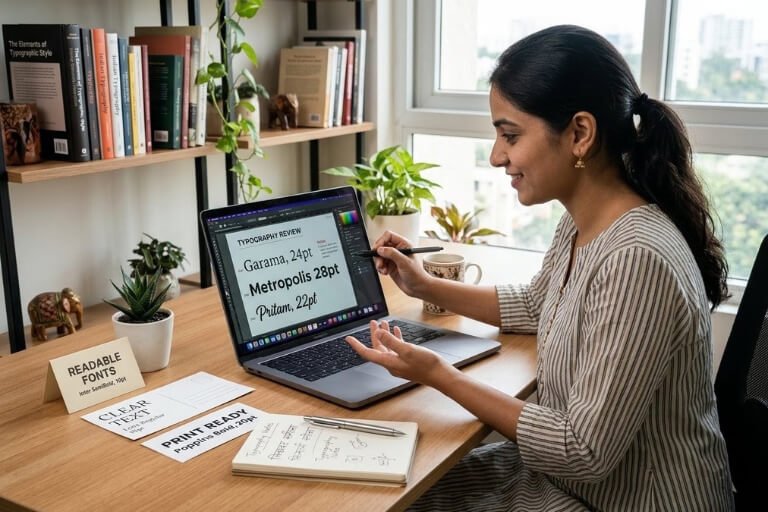
A font can look attractive on a computer but become difficult to read when printed at a small size.
For professional printed material, choose fonts with clear letter shapes and suitable weight.
Sans-serif fonts are often useful for clean modern designs, while serif fonts can create a more traditional or premium appearance.
Be careful with:
- Extremely thin fonts
- Very decorative script fonts
- Tiny text
- Closely spaced letters
- Low-contrast text
- Long paragraphs in decorative fonts
Your main information should remain readable when the finished product is viewed at its actual size.
Design Tip
Use bold or medium font weights for important information such as names, headings, contact details and product information.
Do not make every element bold. Use typography to create a clear visual hierarchy.
Keep Important Content Inside the Safe Area
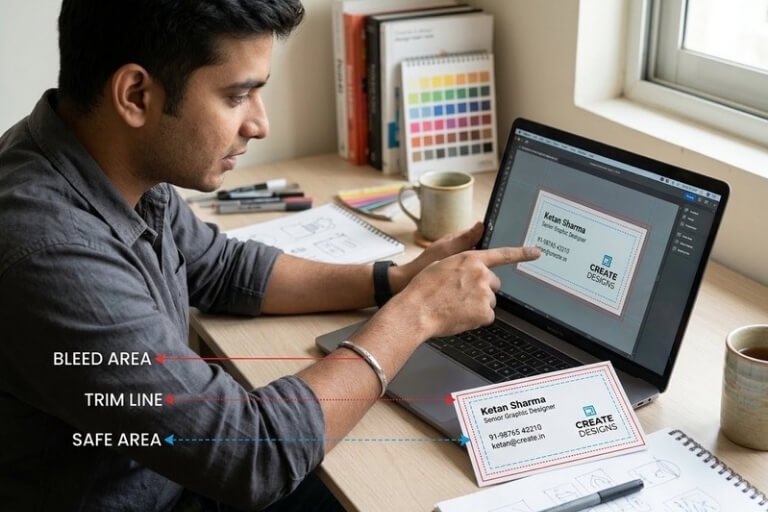
The edges of a printed product are important because the final sheet may be trimmed or cut.
Important information such as logos, names, phone numbers, QR codes and essential text should not be placed too close to the final cutting edge.
This is where the safe area becomes important.
Keep essential content comfortably inside the finished edge unless the product specification says otherwise.
For example, if you are creating a business card, do not place a person’s name or contact details directly against the edge.
Understand Bleed Before Printing
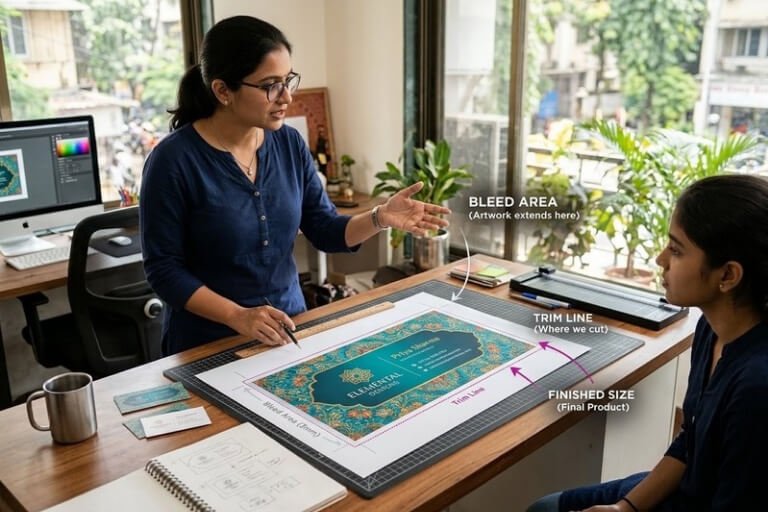
Bleed is the extra design area that extends beyond the final cutting line.
It allows backgrounds, photos or graphics that reach the edge to continue beyond the trimming area. This helps reduce the possibility of an unwanted white strip appearing along an edge after cutting.
A typical example might use a bleed of 0.1 to 0.125 inches, but the correct amount depends on the product and printing specification.
Canva Bleed Tip
If your product requires bleed:
- Create the artwork using the required overall dimensions.
- Extend background images and colors beyond the finished edge.
- Keep important text and logos inside the safe area.
- Do not position important information directly on the trim line.
- Check the final artwork before exporting.
Never assume every product uses the same bleed. Different products can have different production requirements.
Design for Both Sides When Needed
Some printed products have a front and back design, while others use only one side.
Before designing, confirm whether your product requires:
- Front only
- Front and back
- Different artwork on each side
- The same artwork on both sides
This is especially important for products such as business cards, PVC cards, invitations and promotional materials.
If you are ordering a personalized product from Punjab Print Plus, use the product specifications available for that particular item rather than applying the same dimensions to every product.
Make Text and Background Colors Easy to Read
Good design is not only about attractive colors. It is also about readability.
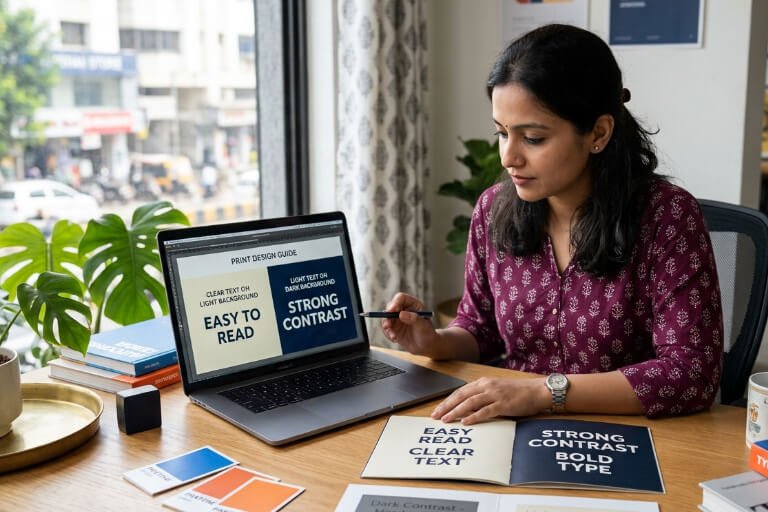
Dark text on a light background is usually easy to read. Light text can work well on a dark background when sufficient contrast is maintained.
Avoid combinations such as:
- Light gray on white
- Pale yellow on white
- Light blue on very light backgrounds
- Similar shades of text and background
Before ordering, look at your design at its actual viewing size.
If you have to zoom in to read the text on your computer, it may be too small for the finished printed product.
Give Photos and Graphics Enough Space
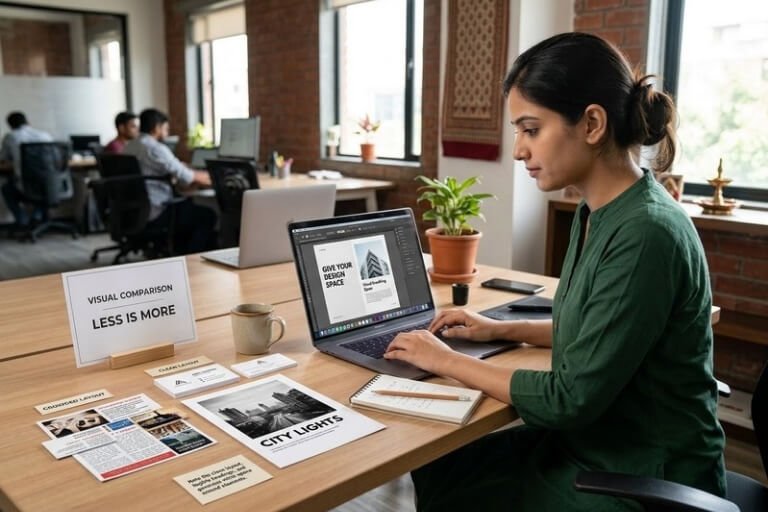
A common Canva mistake is filling every available area with text, photographs, icons and decorative elements.
A professional print design usually benefits from visual breathing space.
Leave enough room around:
- Headings
- Logos
- Product photos
- Names
- Contact information
- QR codes
- Important graphics
A little empty space can make the design look cleaner, more premium and easier to understand.
Use QR Codes Carefully
QR codes are becoming common on business cards, promotional products, packaging and printed marketing materials.
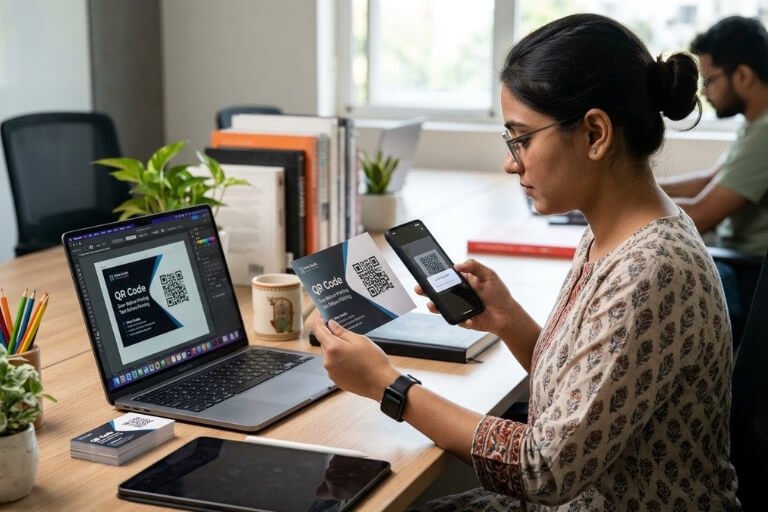
If you include a QR code in your Canva design, make sure:
- It is large enough to scan
- It has sufficient contrast
- It is not stretched unevenly
- It has enough clear space around it
- It points to the correct destination
- You test it with a phone before printing
A QR code that looks attractive but cannot be scanned is not useful.
Select the Right Canva Download Format
After completing your design, choosing the correct export format is just as important as creating the design.
For many professional print projects, PDF Print is a useful Canva export option because it is intended for higher-quality printing workflows.
Depending on the product, other formats may also be appropriate.
Useful for many print-ready layouts, especially documents containing text and graphics.
PNG
Useful for graphics, illustrations and designs where transparency may be required.
JPG
Useful for photographic artwork and certain image-based products.
The required output format can vary by product, so always follow the specifications provided for the particular print job.
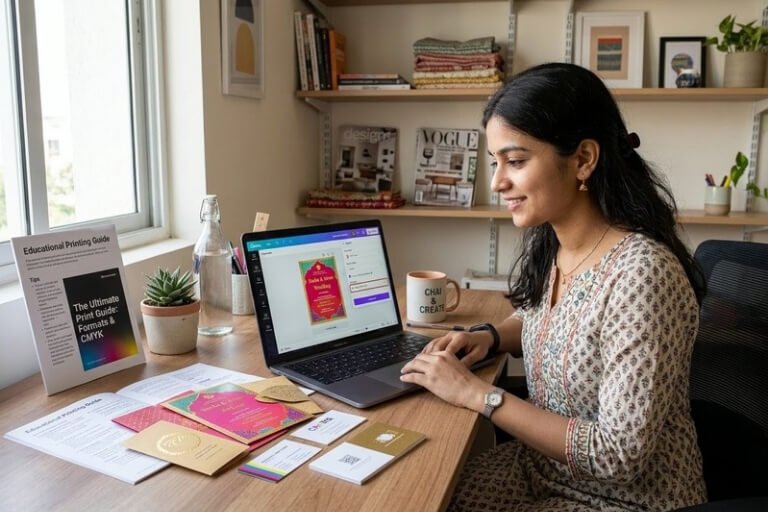
Review Your Design Before Ordering
Never send your Canva design directly to printing without checking it.
Take a few minutes to inspect:
Text
Check names, spelling, phone numbers, addresses and other important information.
Images
Make sure photographs are sharp and positioned correctly.
Colors
Check whether the color combination has sufficient contrast.
Edges
Make sure important content is inside the safe area and backgrounds extend correctly where bleed is required.
QR Codes
Scan every QR code before placing your order.
Sides
Confirm that front and back artwork is correct if the product uses both sides.
Size
Verify that the artwork matches the required product dimensions.
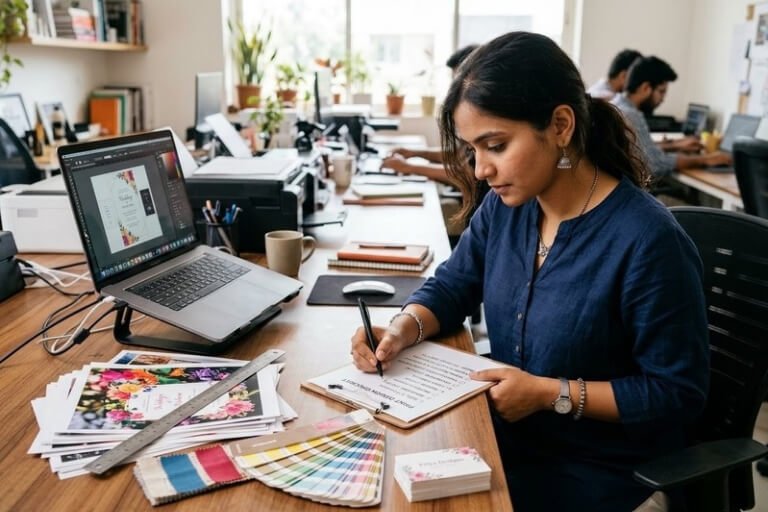
Common Canva Print Mistakes to Avoid
Using a Low Quality Image
A small image may look fine on your phone but become blurry when printed.
Better approach: Start with the highest-quality original image available.
Designing at the Wrong Size
Changing the size after completing the design can affect proportions and positioning.
Better approach: Set the correct product dimensions before designing.
Putting Text Too Close to the Edge
Important content can become uncomfortably close to the trim area.
Better approach: Keep essential information inside the safe area.
Forgetting Bleed
Backgrounds that stop exactly at the trim line can potentially leave unwanted edges after cutting.
Better approach: Extend edge-to-edge backgrounds into the required bleed area.
Using Very Small Text
Small text can become difficult to read on physical products.
Better approach: View your design at actual size before ordering.
Using Too Many Design Elements
Crowded designs can look confusing and less professional.
Better approach: Give your most important information visual priority.
Your Canva Print Ready Checklist
Before sending your artwork for printing, use this quick checklist.
✓ Correct finished size
✓ Correct bleed where required
✓ Important elements inside the safe area
✓ High-resolution photographs
✓ Readable font sizes
✓ Good text and background contrast
✓ Correct front and back artwork
✓ QR code tested if included
✓ Spelling and contact details checked
✓ Correct export format
✓ Final PDF or image reviewed before ordering
This simple check can prevent many avoidable printing problems.
Design on Canva and Print With Confidence
Canva makes it easy to create professional-looking artwork without needing advanced graphic design software. The key is to think about the final physical product while designing, not only how the artwork looks on your screen.
Whether you are creating a PVC card, business card, photo print, framed photo, personalized mug, poster, flyer or another custom print, correct dimensions, high-quality images, readable typography, safe areas and proper export settings can make a noticeable difference.
Once your design is ready, you can order your chosen printed product from Punjab Print Plus and turn your digital design into a professionally printed product.
For customers in India and international locations, preparing the artwork correctly before placing an order can help make the printing process smoother and reduce design-related issues.
Final Thoughts
The best print designs are not necessarily the most complicated ones. They are designs that combine good visual structure, suitable images, readable text and correct print preparation.
Before you click the final order button, take a few minutes to check the size, resolution, colors, bleed, safe area and export file.
A few minutes of preparation in Canva can help you get a much better result from your final printed product.
Design carefully. Check everything. Then print your idea with confidence.
Frequently Asked Questions
Can I create print designs in Canva?
Yes. Canva can be used to create artwork for many printed products. The important part is setting the correct dimensions and preparing the artwork according to the product’s print specifications.
What size should I use in Canva for printing?
Use the finished size specified for your product. If bleed is required, include the appropriate extra design area according to the product’s specifications.
Is Canva suitable for professional printing?
Yes, Canva can be useful for many print projects. However, you should always check resolution, dimensions, safe areas, bleed, colors and export settings before sending the artwork for printing.
Should I use PDF Print from Canva?
PDF Print is often a suitable choice for professional print layouts, but the best file format depends on the product and its production requirements.
Why does my printed color look different from Canva?
Screens use light-based RGB colors, while physical printing uses inks or other printing processes. Because of this, some colors can appear slightly different in print compared with the screen.
How do I avoid blurry prints?
Start with high-resolution images, avoid stretching small photographs and review your design carefully before ordering. Low-quality source images are one of the most common reasons for blurry printed results.
What is bleed in printing?
Bleed is additional artwork that extends beyond the final trim edge. It allows backgrounds and images to reach the edge of the finished product without leaving unwanted gaps after trimming.
What is a safe area?
The safe area is the recommended space inside the finished edge where important information should remain. Keep names, logos, QR codes and essential text away from the cutting edge.
Can I use JPG or PNG for printing?
Yes, JPG and PNG can be suitable for certain print products. The appropriate format depends on the type of artwork and the printer’s requirements.
Can I print my Canva design with Punjab Print Plus?
Yes. You can use your Canva artwork when ordering suitable products from Punjab Print Plus. Always check the individual product specifications before preparing your final artwork.